

Download TechSmith Capture – Free Screen Recording Software for Windows 10
Download TechSmith Capture (formerly Jing) and experience a lightweight, secure, and intuitive screen recording tool designed for effortless desktop capture. Whether you're creating tutorials, sharing quick updates, or documenting software bugs, this free screen capture app delivers fast results without draining your system. With its minimal interface and instant recording capabilities, TechSmith Capture is ideal for both beginners and professionals who value speed and simplicity.
The app runs quietly in the background, letting you focus on your work while capturing high-quality videos and images. Perfect for educators, remote teams, and content creators, it supports direct sharing to Screencast.com, Facebook, and Messenger—making collaboration seamless. Its crosshair recording system ensures precision, while the built-in history tracker keeps your files organized by date, size, and content.
With regular updates and strong compatibility with Windows 10, TechSmith Capture remains a top choice for quick, reliable screen captures.
Why TechSmith Capture Stands Out Among Screen Recording Tools
When it comes to screen recording software, few tools match the balance of simplicity and functionality that TechSmith Capture offers. Unlike bloated alternatives, this lightweight app is designed to be unobtrusive yet powerful. One of its standout features is the crosshair recording system: when you initiate a recording, a small crosshair appears, allowing you to precisely select the area of your screen to capture.
Once you click, the recording starts instantly—no delays, no complicated settings. This makes it perfect for quick demos, troubleshooting guides, or sharing a bug in real time. The app runs silently in the system tray, so you don’t need to minimize other windows or worry about distractions during recording.
Another major advantage is its seamless integration with Screencast.com, where all your recordings and screenshots are automatically uploaded. You can generate shareable links instantly, and recipients don’t need an account to view your content. This is a game-changer for remote teams, educators, and customer support professionals. For social sharing, TechSmith Capture now supports direct uploads to Facebook and Messenger, allowing you to send your work straight from the app. This feature is especially useful for quick feedback loops or informal communication.
The app also includes a smart history panel that tracks every file you’ve created. Each entry shows the date, time, file size, and a thumbnail preview, making it easy to locate past recordings. You can even organize files into folders by date or size, enhancing workflow efficiency. While it doesn’t offer advanced editing tools like Snagit or Monosnap, its core purpose—fast, reliable capture—is executed flawlessly. For users who prioritize speed and simplicity over complex editing, TechSmith Capture is an excellent free alternative to heavier software.
How to Install and Use TechSmith Capture on Windows 10
Getting started with TechSmith Capture is incredibly straightforward. Begin by visiting the official website and clicking the “Download Free” button. The installer is small—typically under 10 MB—and completes in under a minute. Once installed, launch the app, and you’ll be greeted with a clean, minimalist interface located in the top-left corner of your screen. The main menu is accessible via a drop-down arrow, offering quick access to recording, screenshot, and sharing options.
To record your screen, click the “Record” button. A crosshair will appear. Move it to your desired area and click to start.
The recording begins immediately, and a small notification icon appears in your system tray. Click it again to stop the recording. The app automatically uploads the video to your Screencast.com account (you’ll need to sign up for a free one).
You can then copy the shareable link or send it directly via Facebook or Messenger.
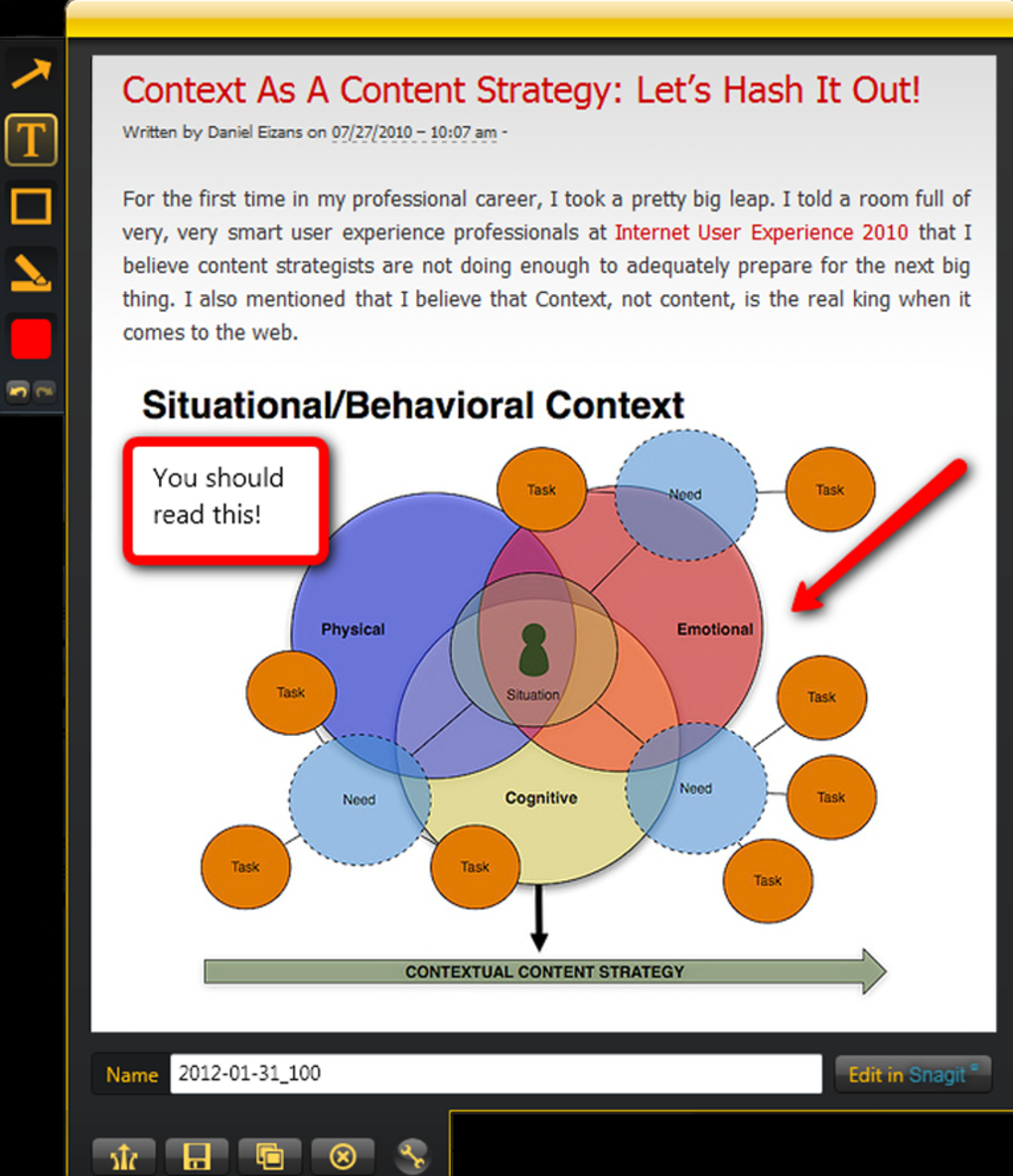
For taking screenshots, simply click “Screenshot” and choose between full screen, window, or custom area capture. The captured image is automatically saved to your history and uploaded to Screencast. You can also use the built-in annotation tools to add text, arrows, or shapes before sharing.
These tools are simple but effective for highlighting key points. After each capture, the file appears in the history section with a thumbnail, date, and size—ideal for tracking your work over time. The app also supports keyboard shortcuts for faster access, which can be customized in the settings.
Compatibility and System Requirements
TechSmith Capture is specifically designed for Windows 10 and is fully optimized for the latest version of the operating system. While it may technically run on older versions like Windows 7 or 8, performance and stability are not guaranteed. Users on legacy systems may encounter compatibility issues, crashes, or lag during recording. If you’re using an older OS, it’s recommended to use alternatives like Greenshot or ShareX, which offer better support for older Windows versions.
On Windows 10, the app requires minimal system resources—typically less than 50 MB of RAM during idle and under 100 MB during recording. It supports both 32-bit and 64-bit architectures and works seamlessly with modern graphics drivers. The software is compatible with most webcams and external capture devices, making it ideal for video tutorials that include facecam overlays. However, it’s important to note that TechSmith Capture is not available for Mac, iOS, or Android. Mac users should consider alternatives like QuickTime or Loom, while mobile users can explore built-in screen recording features or third-party apps.
Regular updates ensure the app remains secure and compatible with new Windows updates and browser changes. The developers actively address bugs and performance issues, which is a strong indicator of long-term support. For users who value a secure, regularly updated tool that doesn’t slow down their machine, TechSmith Capture is a reliable choice—especially on Windows 10 systems.
Pros and Cons: Is TechSmith Capture Right for You?
- Pros:
- Lightweight and fast—minimal impact on system performance
- Intuitive crosshair recording system for instant capture
- Seamless integration with Screencast.com and Facebook
- Automatic history tracking with thumbnails and metadata
- Free to download and use with no watermarks
- Regular updates for security and compatibility
- Cons:
- Only available for Windows 10 (no Mac or mobile support)
- Occasional lag or freezes during long recordings
- Requires a Screencast.com account for sharing
- Limited editing tools compared to Snagit or Monosnap
- No built-in video trimming or cropping features
Frequently Asked Questions (FAQ)
-
Is TechSmith Capture free to download?
Yes, TechSmith Capture is completely free to download and use. There are no hidden fees or watermarks on recorded videos. The free version includes all core recording and sharing features.
-
Can I use TechSmith Capture on Mac or iOS?
No, TechSmith Capture is currently only available for Windows 10. Mac and mobile users should consider alternatives like Loom, QuickTime, or Monosnap.
-
How do I share my recordings?
After recording, your video is automatically uploaded to your Screencast.com account. You can generate a shareable link or send it directly to Facebook or Messenger. Recipients don’t need an account to view the content.
-
Does TechSmith Capture support editing?
It includes basic annotation tools like text, arrows, and shapes, but no advanced editing features like trimming, cropping, or transitions. For more editing, you’ll need to use external software.
-
What should I do if TechSmith Capture freezes during recording?
Close the app and restart it. Ensure your system meets the minimum requirements and that your graphics drivers are up to date. If the issue persists, consider using a different screen recorder for longer sessions.
Final Verdict: A Must-Try Screen Capture Tool for Windows 10 Users
If you're looking for a fast, secure, and easy-to-use screen recording tool, TechSmith Capture is an excellent choice—especially if you're on Windows 10. Its lightweight design, instant recording via crosshair, and seamless sharing options make it ideal for quick tutorials, team collaboration, and social media content. While it lacks advanced editing features and is limited to Windows, its simplicity and reliability outweigh these drawbacks for most users.
With a free download, regular updates, and strong community support, this software continues to be a go-to tool for anyone who values efficiency. Whether you're a teacher, developer, or remote worker, TechSmith Capture helps you communicate visually with minimal effort. Don’t miss out—download TechSmith Capture today and start recording your screen in seconds.







